Appearance Optimization
I. Optimizing Interface 🎨
The Godot engine interface has seen significant improvements in appearance and usability from its initial release to the current version. While there has been substantial progress from the early versions, there is still room for improvement.
To achieve the ultimate development experience, I will customize the appearance of the Godot engine, allowing me to optimize the interface and workflow according to personal preferences. However, the aesthetic appeal and functionality of the engine interface must be balanced, as different users may have varying preferences, and what works best for oneself is the most suitable!
The main changes are as follows:
- The bluish-gray color scheme is not aesthetically pleasing, and the neutral tones used by other engines are more popular.
- The latest version of the interface layout is more reasonable, with better contrast and clarity.
Reference
II. Theme Configuration 💻
I am using a custom theme 🔗 GitHub - passivestar/godot-minimal-theme: Godot Minimal Editor Theme, which provides a clean and visually appealing Godot editor interface theme, significantly enhancing the overall appearance of Godot.
- Visit the Releases page and download the
.tresfile that matches your Godot version. If you are using a high-resolution display, please download the high ppi version of the file. - In Godot, go to
Editor -> Editor Settings -> Interface -> Theme, and at the bottom, underCustom Theme, select the theme file you just downloaded. A message will appear: "The editor must be restarted for the changes to take effect." Click the "Save & Restart" button to restart the editor. - The author also provides recommended settings in
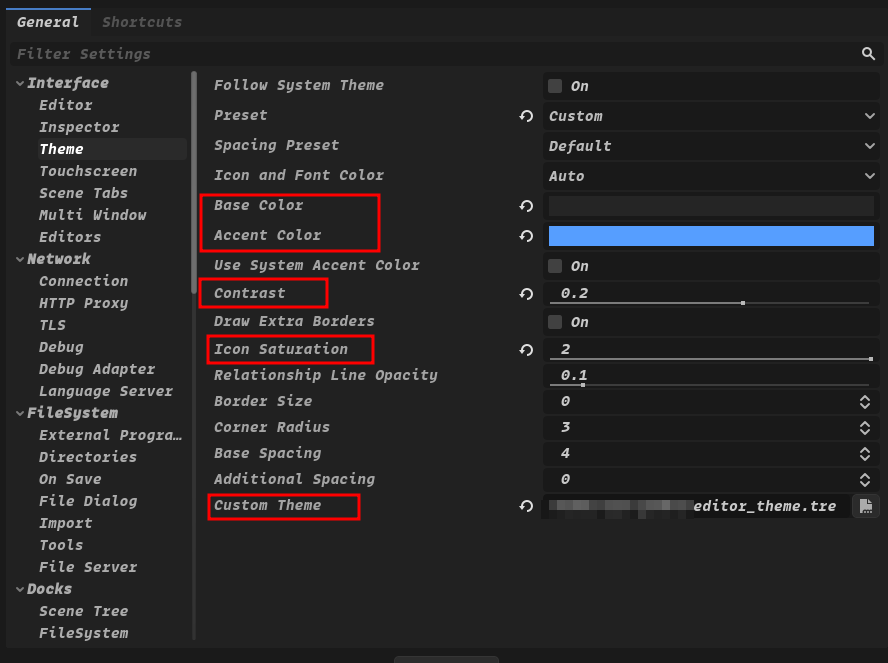
Editor -> Editor Settings -> Interface -> Theme:
- Base Color:
#252525 - Accent Color:
#569eff - Contrast:
0.2 - Icon Saturation:
2
- Modify the font in
Editor -> Editor Settings -> Interface -> EditorunderMain Font.
III. Layout Configuration 📐
Next, I will adjust the layout, taking inspiration from the Unreal Engine 5 interface layout.
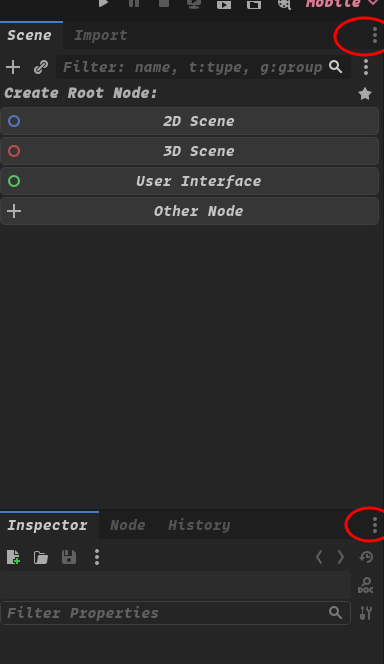
Click the panel's top-right corner:
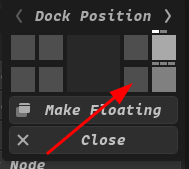
Place it in a suitable position:
Dock the "File System" panel to the bottom:
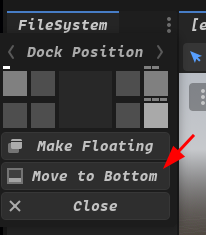
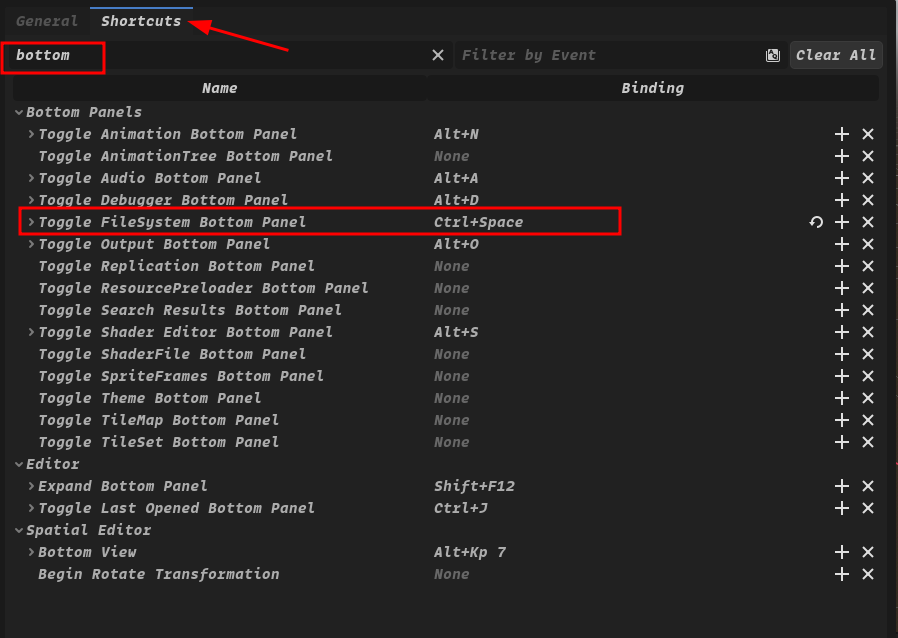
Configure the "File System" panel shortcut:
Editor -> Editor Settings > Shortcuts > Toggle FileSystem Bottom Panel : CTRL+SPACE
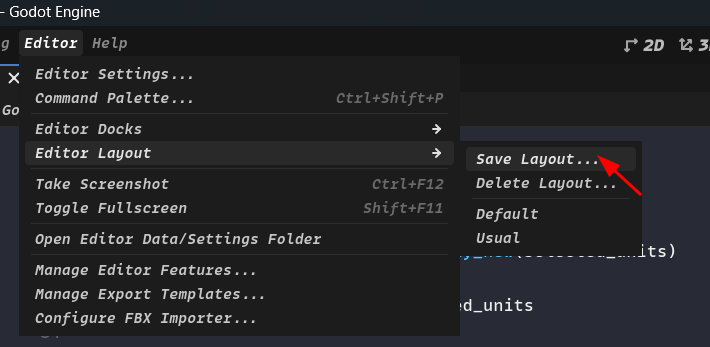
Save the layout so that the same layout can be used in subsequent projects without having to reset it each time:
Editor -> Editor Layout -> Save Layout
Name the layouts (e.g. Usual) to help you quickly identify and switch to the desired layout.
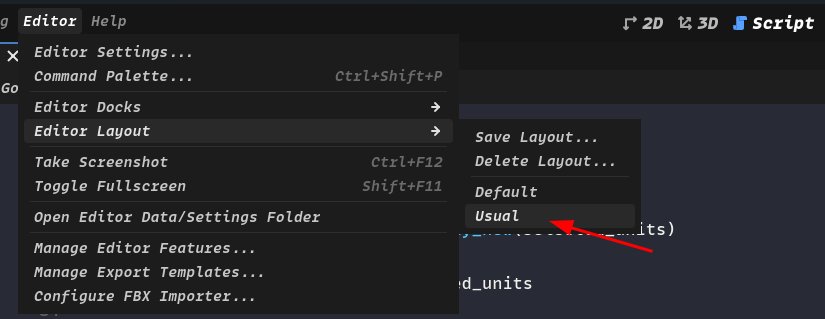
Switch to the specified layout for new projects:
Editor -> Editor Layout -> (Select the layout you named)
IV. Script Editor Theme 🎨
You can choose your preferred theme. Here, we use an elegant and brightly colored Godot script editor theme—- 🎨 Godot-Snazzy as an example.
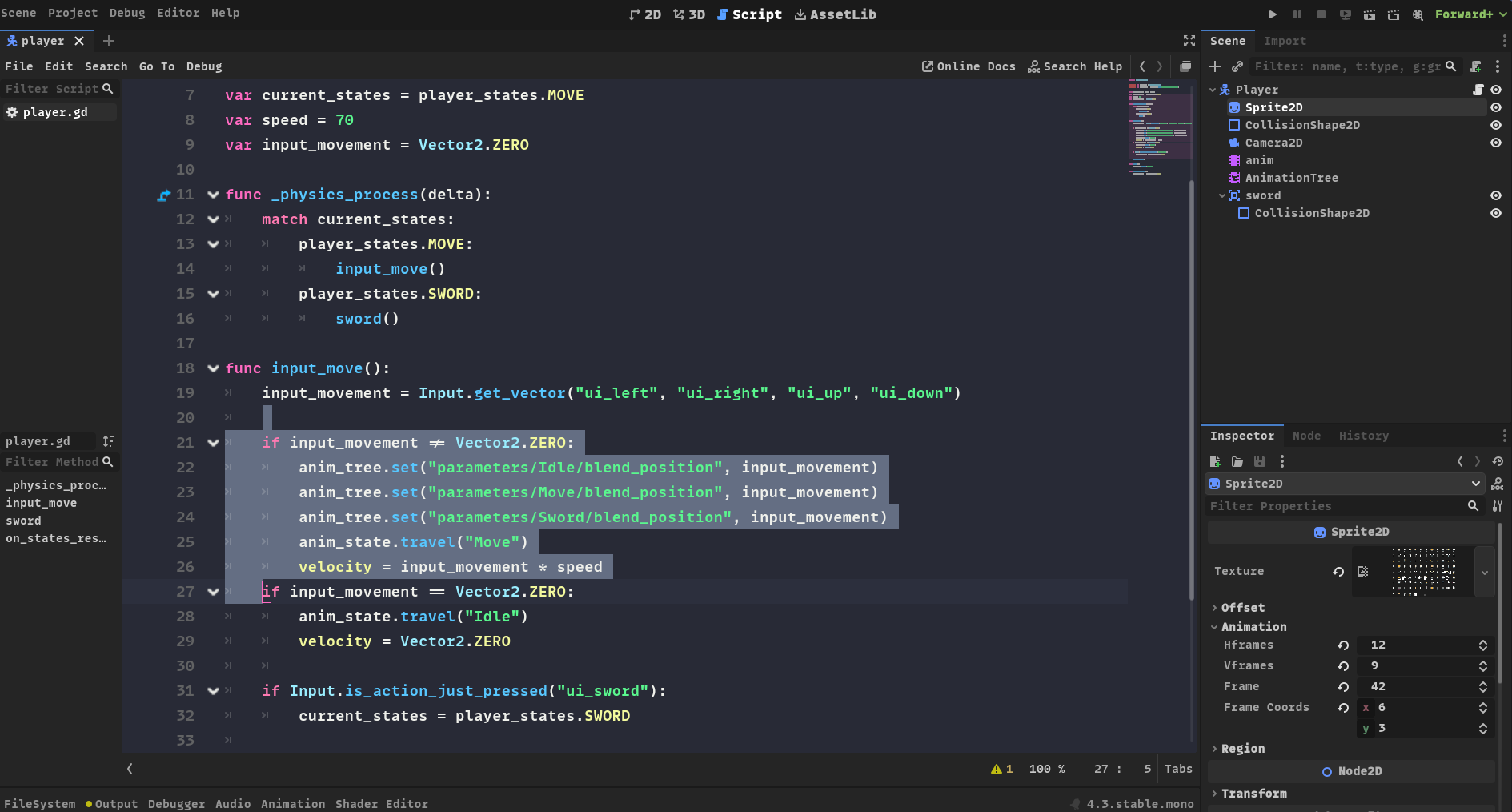
Please configure it according to your actual installation location!!
Place the .tet file in your Godot text editor theme directory:
- Linux: ~/.config/godot/text_editor_themes/
- macOS: ~/Library/Application Support/Godot/text_editor_themes/
- Windows: %APPDATA%\Godot\text_editor_themes\
If you installed Godot via Steam, your Godot text editor theme folder
should be located in the Steam installation directory under steamapps/common/Godot Engine/editor_data/text_editor_themes/.
Alternatively, you can install it via the command line:
# On Linux:
git clone https://github.com/Nexseer/godot-snazzy.git ~/.config/godot/text_editor_themes

# On macOS:
git clone https://github.com/Nexseer/godot-snazzy.git "~/Library/Application Support/Godot/text_editor_themes"

# On Windows:
git clone https://github.com/Nexseer/godot-snazzy.git "%APPDATA%\Godot\text_editor_themes"
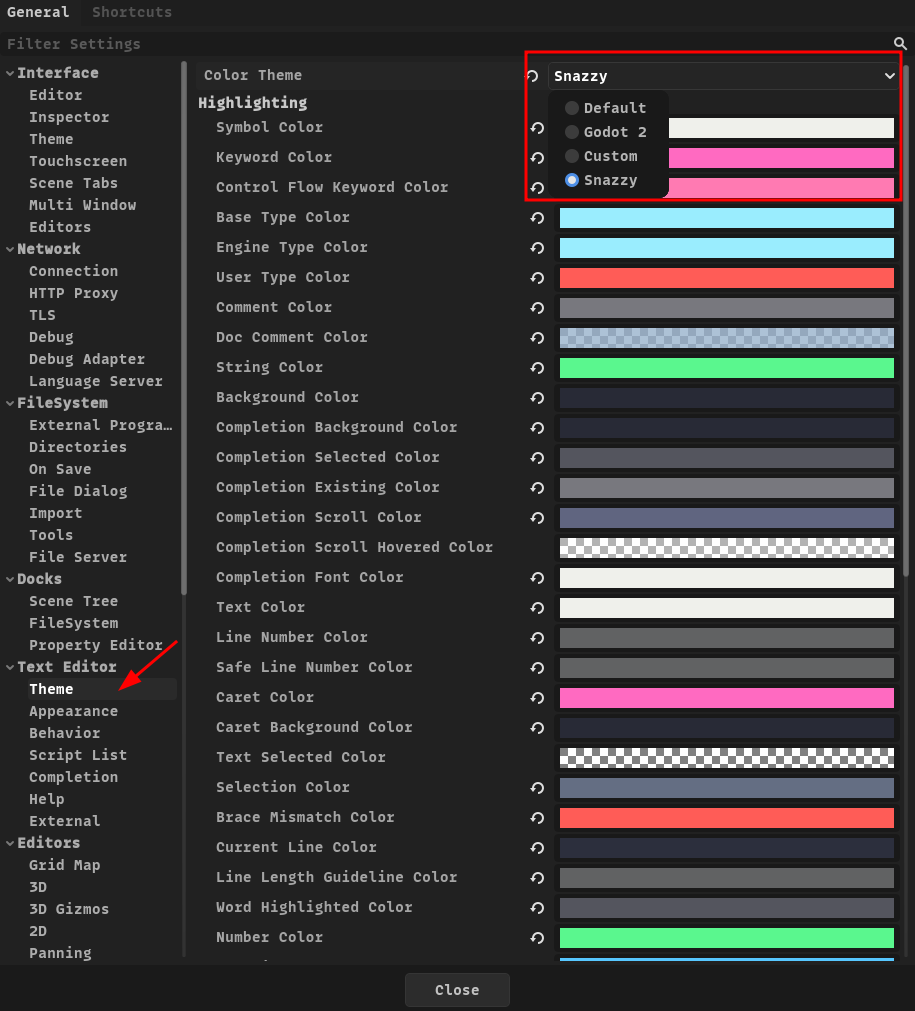
Go to Editor -> Editor Settings -> Text Editor -> Theme to change the theme. Now you should be able to select your desired theme.